Copy and customize the starter applet
Start with a complete applet that already handles proportional sizing, parameters, server variables and a configured action. It uses the fitting pattern from MATRIC's included clock and counter applets, with no dependencies or build step.
Download and install
Download starter-applet.mapl and double-click it on the Windows PC running MATRIC. Alternatively, copy the source files into your actual Documents folder, including when Documents is redirected to OneDrive:
Documents/MATRIC/custom/starter-applet/
├── manifest.json
├── applet.html
├── applet.css
├── applet.js
└── README.md
Source downloads: manifest, HTML, CSS, JavaScript, README.
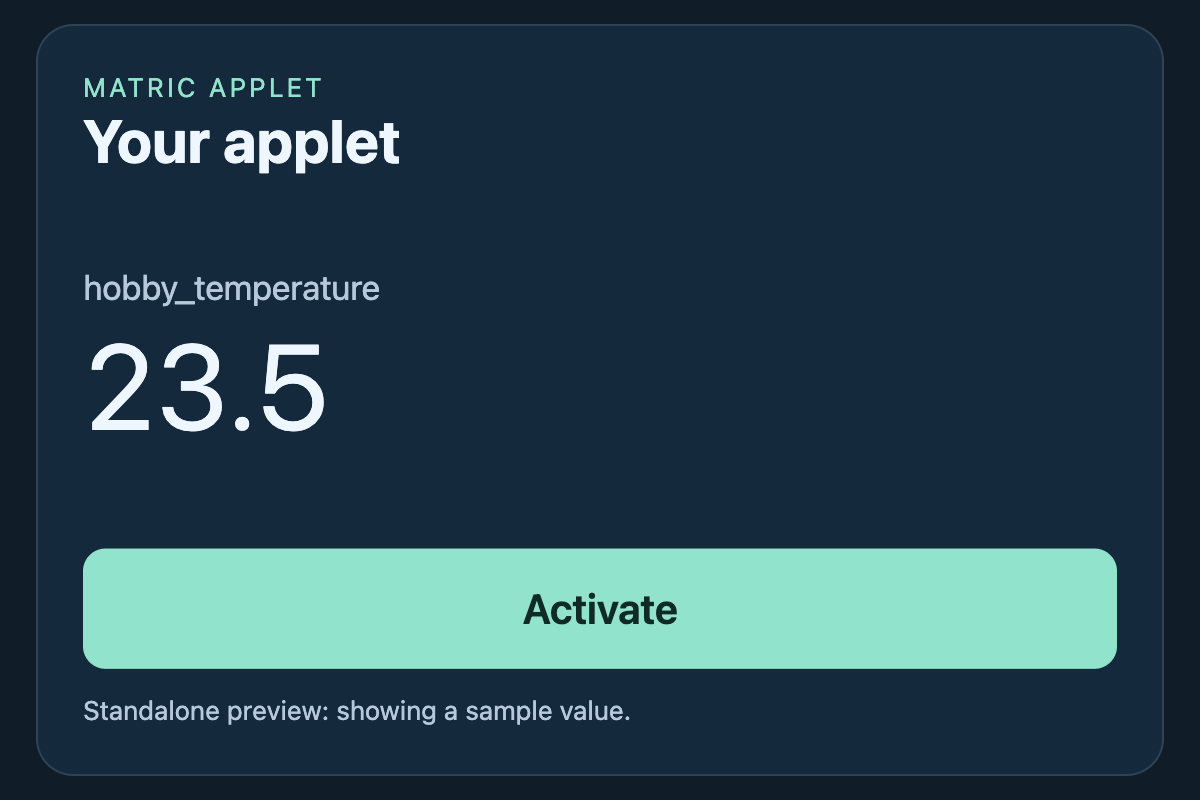
Opening applet.html in an ordinary browser shows a standalone preview with a sample value. Its button explains that actions require installation in MATRIC; it does not simulate a successful desktop action.
Try it in MATRIC
- Add a Custom applet container to a test deck. Start with 6 × 4 cells, matching the starter's 3:2 design.
- Refresh the applet catalog if needed, select Starter applet, and enable Allow user interaction with embedded applet.
- Choose an existing Variable to display. Use
hobby_temperaturewith the Python example, or choose one of your own variables. - Bind Activate to Text in Events and actions and configure the text to type.
- Save, load the deck on a client, focus a blank text editor on the PC, and tap Activate. The configured text should be typed there.
The editor displays values but disables the button. Missing or null values display Waiting for value; zero and false remain visible. Parameter and variable updates can arrive in either order. Neither ordinary resizing nor returning to the applet resets its data.
Keep the fitting code
The starter defines one 600 × 400 design rectangle. It measures the available iframe viewport, subtracts an outer inset, takes the smaller width/height scale, and centers the whole design. It repeats the calculation when the viewport, padding or visibility lifecycle changes. The code comments identify the fitting and message-handling sections to keep when replacing the UI.
| Parameter | Behavior |
|---|---|
| Caption | Heading text |
| Variable to display | Name of the server variable to look up |
| Outer padding | CSS pixels around the scaled design; clamped to 0–256 and further limited to fit tiny viewports |
| Accent color | Button and heading accent |
| Background color | Color of the unused space around the design |
Matching the container to 3:2 uses the space efficiently. Other shapes keep the same proportions and leave unused space. No content is stretched or cropped to fill the rectangle.
For touch interaction, start at approximately 480 × 320 CSS pixels with the default 12px outer padding. At that size the 64px design button remains over 44 CSS pixels high. Larger padding needs a larger container. Very small containers still fit, but the text and touch target shrink with the design. Test on your target device; fitting inside the rectangle does not guarantee usability.
Make it yours
Copy the installed folder under a new name, then change AppletId in manifest.json to exactly that name. Update the display name, description, author and version. This keeps experiments separate from the original starter.
Edit applet.html and applet.css for your interface. Change DESIGN_WIDTH and DESIGN_HEIGHT in applet.js if you need different proportions; those constants size both the element and the fitting calculation. Adjust the internal layout to suit the new dimensions. Keep a single overall scale and the root height/margin reset.
Long headings and values are shortened visually with an ellipsis, with the complete text retained in title. Choose wrapping or another layout if your content needs every character visible. For draggable custom graphics, convert pointer coordinates using the transformed element's getBoundingClientRect().
The example exposes only the Text action, which needs no held-input release. If you add hotkey or vJoy holds, implement the paired release and cancellation handling too.
Use Reload applet after edits, and reopen the client deck if content is stale. See Size and lay out an applet for alternative layout strategies and the applet reference for additional parameter and event types.
Share your version
Zip the contents of your renamed folder and rename the archive to .mapl. Keep manifest.json and applet.html beside each other at the archive root. Share that package alongside any .deck that uses it; applet files are not included in a deck export. Importing the same applet ID replaces the installed folder, so keep a backup before updates.